For engineers who don’t write software for a living. Mechanical, electrical, civil, process, test, whatever. If you want the why behind any of this, it’s in How We Got AI to Not Suck.
Setup
- Know what’s going to happen with your data. See below.
- Install Claude Code. The desktop app is the easiest way in.
- Make a folder, put real work files in it, and open Claude Code on that folder.
Your data
Claude Code runs on your computer, and it doesn’t upload your whole folder. But the model itself runs on Anthropic’s servers. Anything that goes to the model goes there too. That’s your messages, plus every file or piece of a file it reads to do the work, plus the output of anything it runs. If it opened a file, assume that file’s contents left your machine.
Most AI providers have a setting for whether your conversations get used to train future models.
- For Claude on a personal Free, Pro or Max plan, it’s Settings → Privacy → Help improve Claude. Turn it off if you don’t want your work used for training.
- Team, Enterprise and API accounts aren’t used for training by default.
If it’s work data, your company may have its own rules on top of that.
The loop
1. Figure out how it can work with your tools
Claude Code can read and write files and run programs. It can’t reach into your CAD package or your test software just by being installed. It needs a way in.
So before handing it work, tell it what you want to do and ask what tools would let it do that.
I want to see what you can do with mechanical drawings and 3D models. First, what’s the best engineering tool you could work with that we can get for free? Could we use Blender? Does it have an MCP server, and how do we set it up?
Lots of engineering software has a way in. FreeCAD and Blender have Python built in. Excel and CSV files it can read and write directly. Many programs have an MCP server, a plug-in that gives the agent tools for that specific program. It knows what’s out there and can help you set it up.
A real way in always beats it clicking around your screen. That’s the ugly fix.
When I asked, it said Blender is great for renders but not for accurate parts, and pointed me at a free Python CAD library instead. It also noticed FreeCAD wasn’t installed and set that up too.
2. Give it real work
Not a test question. Something that’s actually on your list this week, with the files it needs.
we want a usable engineering doc to make a computer fan, standard one (120mm or 140mm i forget) - cool renders would help, then eventually we wanna simulate it with airflow/case configurations with cpu temp estimates
About half an hour later I had an 8-page drawing package with dimensioned sheets, a parts list, STEP files and renders. Then airflow simulations of four case layouts, with estimated CPU temps for each.
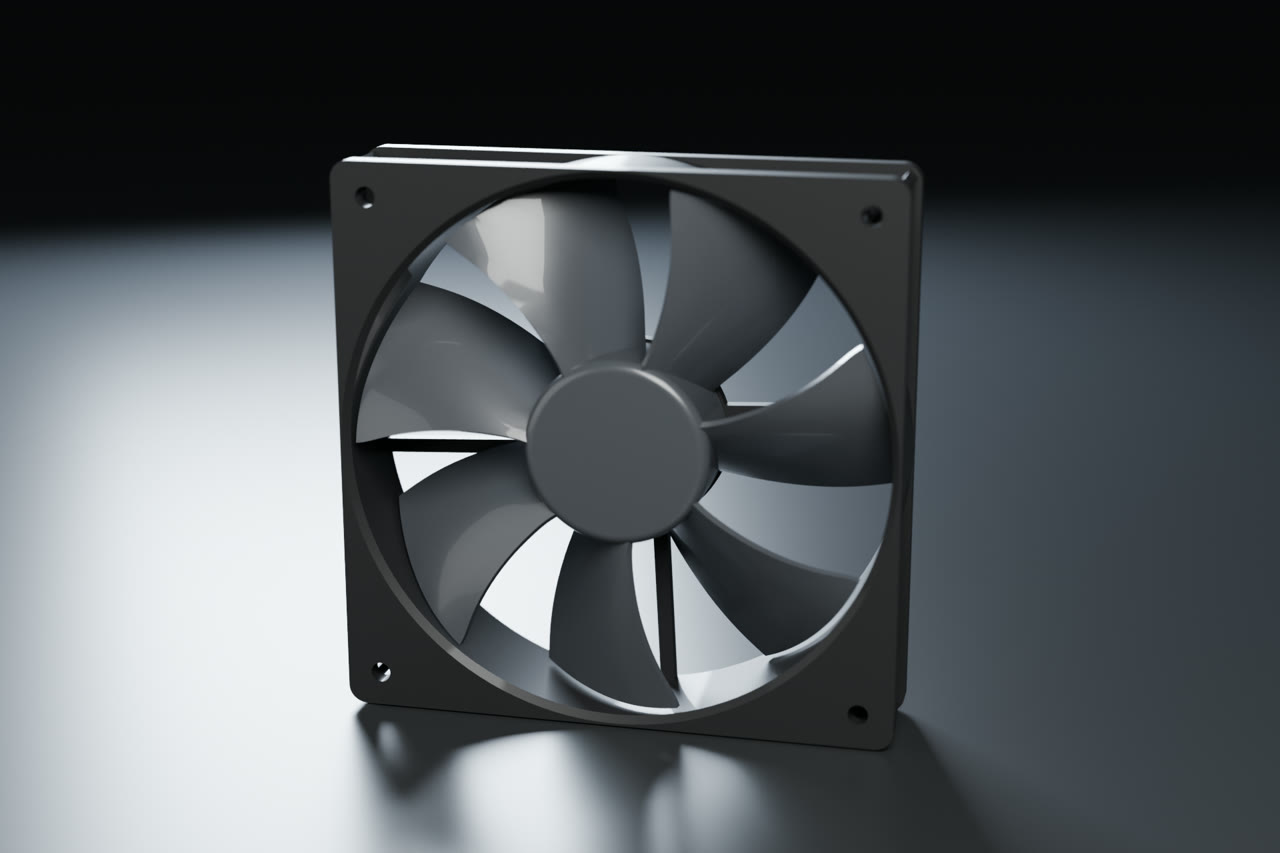
The whole project, with the drawings, simulations and renders, is on the CPU Fan Design pages.
3. Watch if it struggles
It will. Maybe it can’t open a file format your tools spit out. Maybe it guesses a value that’s buried in a PDF. Maybe it gets the method right and the units wrong. Maybe it just doesn’t know how your company does things.
Don’t just fix the answer and move on. The struggle is the useful part.
On the fan, it hit plenty of problems and fixed most of them itself. Blade geometry that failed the CAD validity check. A rotor overlapping the frame by 3.5 mm³. Renders blown out because the lights were sized for a room, not a 12 cm fan. It caught all of those because each one had a check it could run.
The one that got through had no check. I showed the results to a friend who does this for real, and he said:
Modeled it in a case. Rookie mistake.
4. Ask it about the struggle
It can tell you a lot about why it went wrong, and what would have helped.
I didn’t get the friend’s point, so I asked:
so i ask again why he would think that’s a rookie mistake
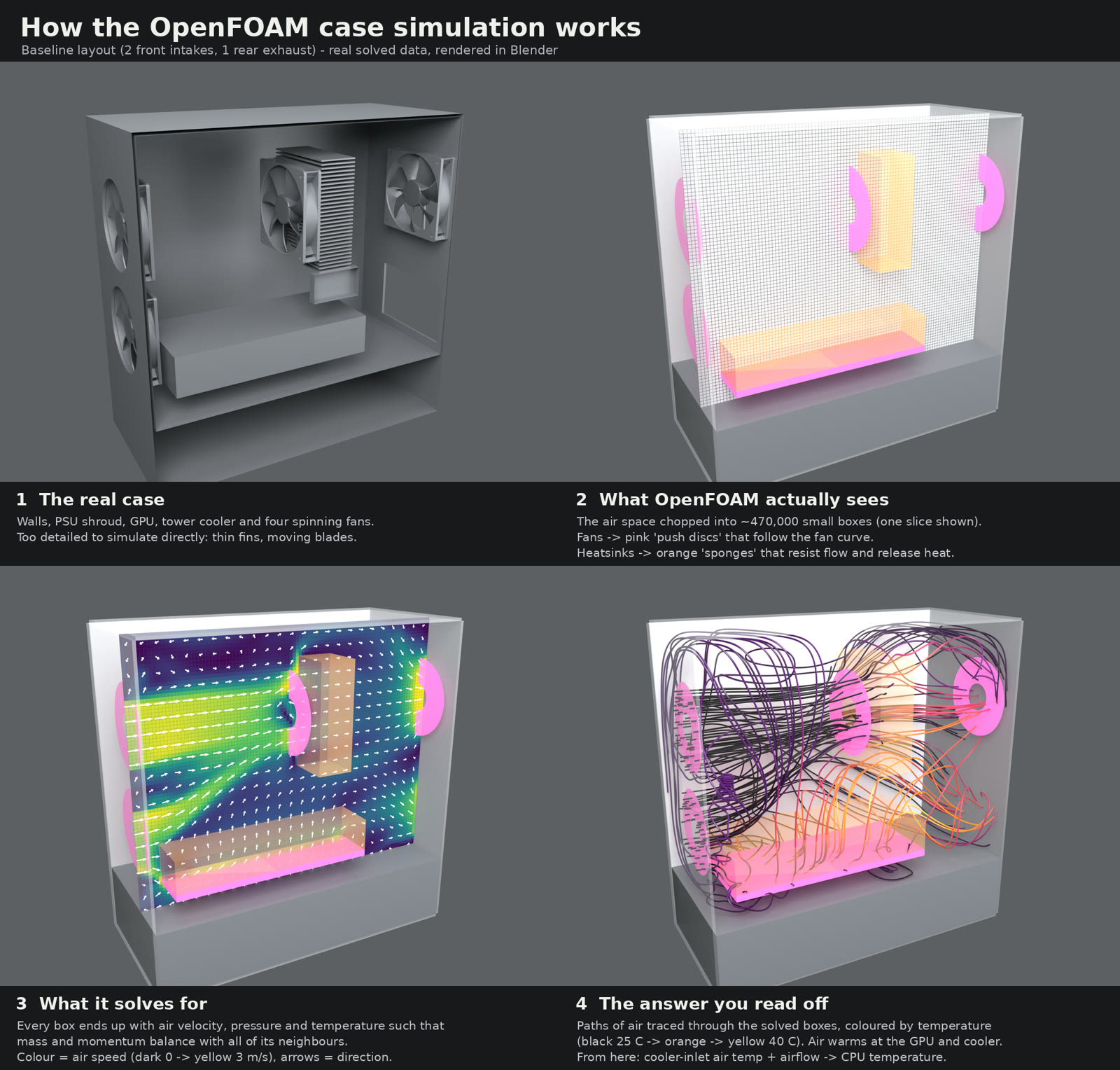
Because the thing you designed was the fan, and a case simulation can’t tell you whether the fan is any good. Experienced engineers isolate the part they’re testing first.
It knew the right method the whole time. It just didn’t use it until someone pushed. It’s also good at explaining its own work when you’re lost. When I didn’t understand the airflow sim, I asked for a visual and got this, rendered from the real simulation data:
Other questions worth asking:
Why did you assume that value instead of finding it?
That took you a lot of tries. What would have made it easier?
What do you wish you’d known before starting?
Is there a better way to give you this data?
5. Fix the setup, not just the answer
Whatever it told you, act on it.
ok. lets do a proper sim for real testing then
It built a virtual version of the standard fan test chamber, the kind fan makers use to rate their fans, and tested the fan on its own.
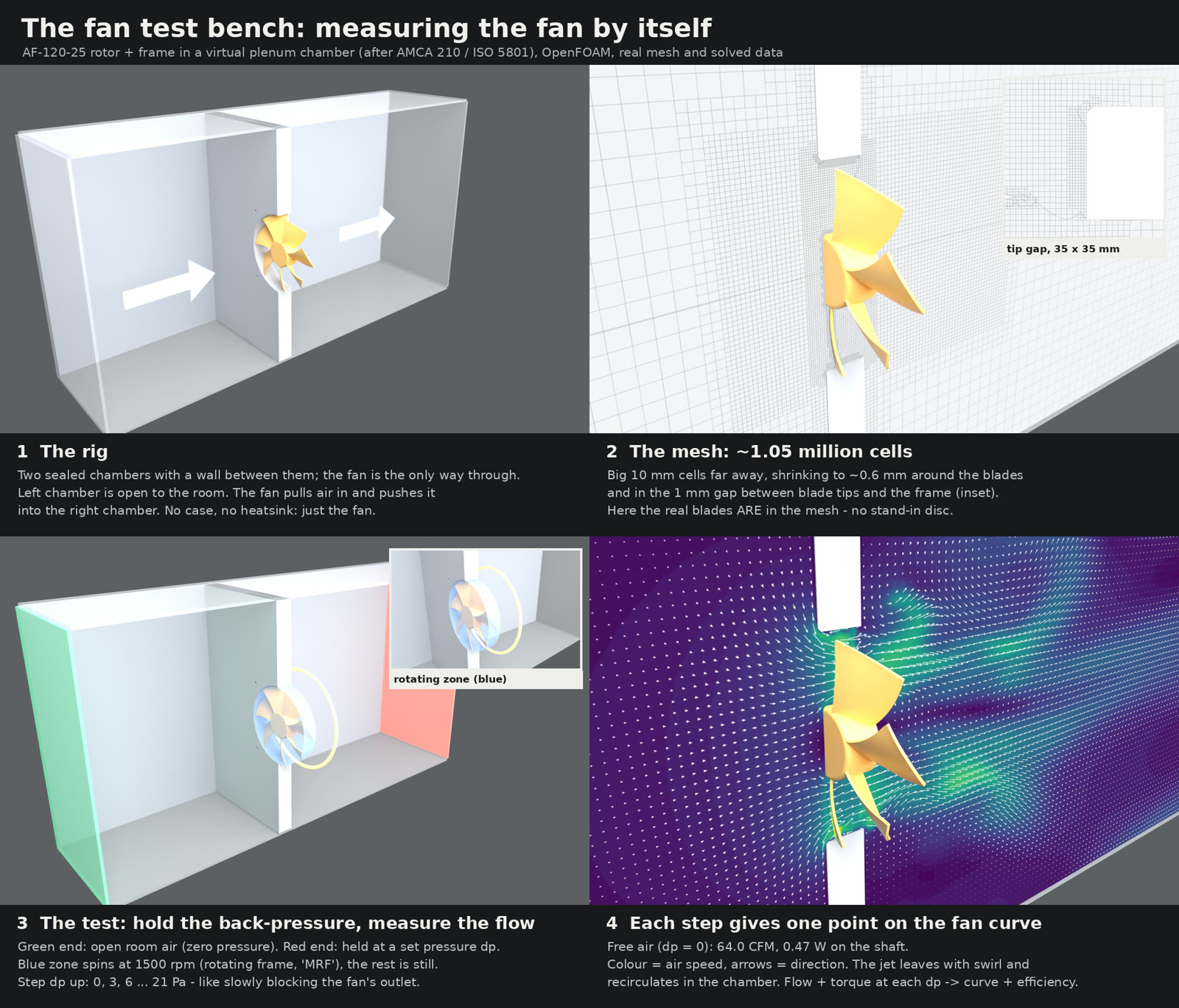
Free-air flow came out at 64 CFM. Its earlier estimate said 84. The real number was 24% lower, and every CPU temp in the case results was built on the estimate. Next step is finishing the rest of the fan curve and rerunning the case sims with it.
- It needed context? Have it write down the rule so it knows next time.
- It needed a tool? Have it find or build one. A small script that reads your test rig’s export format, pulls values out of your standard report template, or runs the calc your group does every week. It can write these for you.
- Your ask was vague? Notice how you’d phrase it better, and phrase it that way next time.
- It’s just bad at this? That’s an answer too. Keep doing that part yourself.
6. Go again
Next task, same loop. If a tool keeps getting in the way, go back to step 1 and find a better one. Each time it struggles a little less, and you get a better feel for what it’s good at.
Things to keep doing yourself
- Don’t take a bare number. Ask how it got it. The good answers come from a calculation it ran, not from memory.
- Make it check against something you trust. A hand calc, a textbook example, last project’s numbers.
- Give it real files. Not screenshots, not descriptions.
- You own the result. Review it like a new grad’s work. If you stamp it, it’s yours.